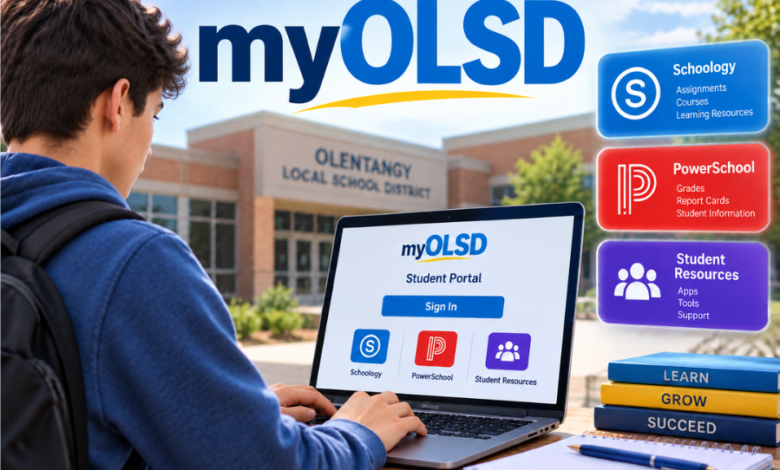
Olentangy Local School District in Ohio directs students to myOLSD, its ClassLink-powered gateway to school applications. Rather than serving as a single place where every grade, assignment and message is stored, the portal helps students reach the separate systems they use throughout the school day.
That distinction matters when a lesson will not open, a password stops working or a parent needs to check progress. The district’s own guidance identifies Schoology and PowerSchool as key digital resources, while families also use dedicated communication services.
This guide explains how to find the official myOLSD login, what happens after signing in, which platform handles which task and how to solve common access problems without putting student information at risk.
What myOLSD Actually Does
myOLSD is the student portal associated with Olentangy Local School District, which serves communities in central Ohio. Its login page is hosted through ClassLink LaunchPad, a service designed to bring authorised educational applications together behind a common entry point.
Think of it as a doorway rather than a replacement for the classroom software beyond it. Students select available application tiles to open learning resources, with the precise selection depending on their school, grade and assigned services. A tool shown to one pupil might not appear for another.
The district’s digital-resources guidance makes this variation clear: applications and their classroom use can differ by grade, school and teacher. Consequently, online descriptions promising an identical dashboard for everyone should be treated cautiously.
Finding the Official Login Without Guesswork
The safest route starts on the Olentangy Schools district website. Open its Students section and select the item labelled myOLSD Portal. That takes visitors to the district’s ClassLink login experience, visibly branded myOLSD.
Students should follow the sign-in method provided by their school. Credentials and authentication arrangements can differ, so a generic internet guide cannot confirm the correct username format or guarantee that a particular sign-in option is available to every account.
Once access is granted, the launchpad displays applications associated with that user’s account. Choose the required tool rather than searching for a second, unrelated login page. For frequently used personal devices, the district recommends bookmarking the authorised portal.
Be especially careful with websites using similar names. A page describing myOLSD is not automatically operated by the school district, even when its branding looks convincing. Start with the school website instead of entering a password into an unfamiliar search result.
Schoology: The Place for Coursework
For students looking for assignments, Schoology is usually the more relevant destination than the launchpad itself. Olentangy describes Schoology as a learning management system through which teachers can organise lessons, provide curricular materials and assess understanding.
Students can use it to review course information and upcoming work, subject to how individual teachers structure their classes. It can also support the exchange of assignment information, making it useful when pupils are absent or need to revisit instructions outside school hours.
The district explicitly instructs students to access Schoology through myOLSD. Parents, however, use a separate Schoology sign-in. Confusing those routes can produce an unnecessary login problem even when both accounts are functioning correctly.
A sensible habit is to read the actual assignment instructions and submission status inside the course. Seeing a task on a calendar does not establish that submitted work has been received or graded; students should check the relevant course details.
PowerSchool: Records Rather Than Lessons
PowerSchool serves a different purpose. Olentangy uses it as a student information system, supporting school records and communication involving parents, students, teachers and administrators. Its parent-facing resources include instructions for accessing report cards and maintaining information.
That distinction explains why a grade displayed in PowerSchool may not be presented in precisely the same way as feedback on an individual Schoology task. The systems have different responsibilities, and users should not assume every item is updated simultaneously.
Students may reach PowerSchool through their assigned myOLSD applications. Families looking for their own access should follow the PowerSchool sign-in and account-creation guidance published in the district’s Parents section.
Importantly, Olentangy advises parents against using the PowerSchool mobile app. The district says it cannot correct inaccuracies arising from an app not configured specifically for its schools and recommends the PowerSchool website instead.
Why Parents Need Their Own Accounts
One common misconception is that a parent should log into the same myOLSD dashboard as their child. Olentangy’s published instructions draw a clearer boundary: student access to Schoology runs through myOLSD, while families have a parent-only Schoology login.
Parents can use Schoology to follow the learning information made available to them. The district explains that an additional child’s account can be linked using a code obtained from the relevant school building secretary. This is a safer process than sharing a pupil’s password.
PowerSchool likewise has separate parent account guidance. Families should use it for records, forms and other supported student-information tasks, rather than expecting the Schoology learning area to handle everything.
Access to information can also vary with student age, teacher settings and the purpose of each service. If something is missing, checking which system owns the information is more productive than repeatedly signing into the wrong one.
Communication Beyond the myOLSD Dashboard
Not every school message belongs in Schoology or PowerSchool. Olentangy also uses ParentSquare for district, school and family communication, including announcements, direct messages, forms and conference arrangements. It is not the district’s platform for classroom assignments.
For students, the related StudentSquare service offers a separate communications route. The district instructs students setting it up to choose Microsoft’s sign-in option and use their myOLSD student email account. That does not make StudentSquare the same product as myOLSD.
Older students may also encounter SchooLinks for college and career planning. These tools illustrate the wider ecosystem: the portal helps pupils get to authorised resources, but different applications remain responsible for different activities.
Using myOLSD on Different Devices
A home computer or school-issued Chromebook can provide access through a compatible web browser and an internet connection. Start at the district’s official portal route and use the account assigned to the student; do not assume that a personal Microsoft or Google account will work.
On a shared computer, sign out when finished and avoid saving credentials in a browser used by other people. On a personal device, bookmarking the district-approved entry point reduces the temptation to use misleading search results.
A mobile browser may also be useful for checking basic information, although interfaces and supported features can differ between applications. For detailed assignments or document editing, a larger screen and keyboard may be more practical.
There is no need to assume that every district resource requires a separate downloadable myOLSD app. Follow current school instructions before installing anything promoted as an official portal application.
Fixing Login and Application Problems
When myOLSD will not open, identify the stage at which the problem occurs. A page that never loads is different from a rejected password; both differ from a successful login followed by a missing Schoology tile.
First, confirm that the device has a working connection and that the browser opens other trusted sites. Return to the portal from the district’s Students page, check spelling and confirm that the correct school-issued identity is being used.
If the login page loads but authentication fails, avoid endless password guesses. Contact the school or follow the account-recovery process authorised by the district. A parent’s Schoology or PowerSchool password-recovery option is not necessarily the right procedure for a student’s myOLSD account.
If sign-in succeeds but an application fails, try opening it again and look for relevant browser prompts. The ClassLink login page provides a Browser Check option, which can help identify browser-related conditions. Do not disable security protections indiscriminately to make a school application work.
Finally, report a missing application, repeated error or suspected account problem to the teacher or school technology contact. Include the application name and the wording of any error, but never send a password or security code in a support message.
Privacy and Safe Access Matter
School platforms handle information that deserves care, including coursework, grades and account identifiers. Their convenience does not remove the need for basic digital safety practices, especially when students work on devices away from school.
Use only access routes endorsed by Olentangy Schools, keep passwords private and sign out of shared devices. Unexpected requests for login details should be checked with school staff before taking action. A copied logo or familiar portal name is not proof that a website is trustworthy.
Families should also distinguish routine technical issues from genuine account-security concerns. If credentials may have been exposed, notify the school promptly and follow its reset instructions. Do not upload screenshots containing pupil details to public forums in search of troubleshooting advice.
Building a Useful Daily Routine
The easiest way to benefit from myOLSD is to treat it as the starting point for a short, purposeful check-in. Open Schoology for lesson instructions and upcoming tasks, then use PowerSchool when official student-information details are needed.
Before an assignment deadline, confirm which document or response needs submitting and whether the submission has registered. Families can separately review messages in ParentSquare and the information available through their parent accounts.
These small distinctions prevent avoidable confusion. No single application tells the whole story of a school day, and students are better served by knowing where to look than by refreshing every platform repeatedly.
Conclusion
myOLSD matters because it simplifies the first step into Olentangy’s collection of digital learning services. Its value lies in organised access, not in replacing Schoology, PowerSchool or the district’s family communication systems.
Students should enter through the official portal, use each application for its intended purpose and seek school-supported help when access fails. For parents, understanding the separate account routes is equally important. Together, those habits make digital schoolwork easier to navigate and sensitive information safer to manage.
FAQs
Is myOLSD the same as ClassLink?
Not exactly. myOLSD is the name Olentangy uses for its student portal, and the official login runs through ClassLink LaunchPad. ClassLink supplies the access experience, while individual school applications handle assignments, records and communications. The two names are related but do not refer to every service on the dashboard.
Can parents sign in to myOLSD to see grades?
Parents should use the district’s designated family services rather than logging in with a student’s credentials. Olentangy publishes separate parent access instructions for PowerSchool and Schoology. PowerSchool is especially relevant to student records and report cards; Schoology provides learning-related information, depending on the class and account.
What should I do if I forget my myOLSD password?
Start with the official district portal and follow any recovery directions provided by your school. If those instructions are unavailable or do not resolve the issue, contact the school technology support team or office. Do not enter your school password into an independent website offering instant recovery.
Why can I log into myOLSD but not open Schoology?
Successful portal authentication does not guarantee that every connected application is working. The issue could involve an application session, browser setting or account permission. Retry from the authorised dashboard, check any error message and ask school staff for assistance if it persists. Avoid creating an unrelated account as a workaround.
Does myOLSD work on phones and Chromebooks?
The portal uses a web-based ClassLink entry point, so supported browsers on different devices can provide access. What students can do comfortably depends on the application and the school’s device guidance. Olentangy specifically recommends that parents use the PowerSchool website instead of its mobile app because of potential inaccuracies.